A user is not the same as a employee. An employee does not necessarily have access to the application, but a user is someone who does have access to SOFOS 360® and performs an operation or processing therein.
- Go in the menu on the left to Settings > Authorization > User. You see an overview of the existing users.

- Click on New
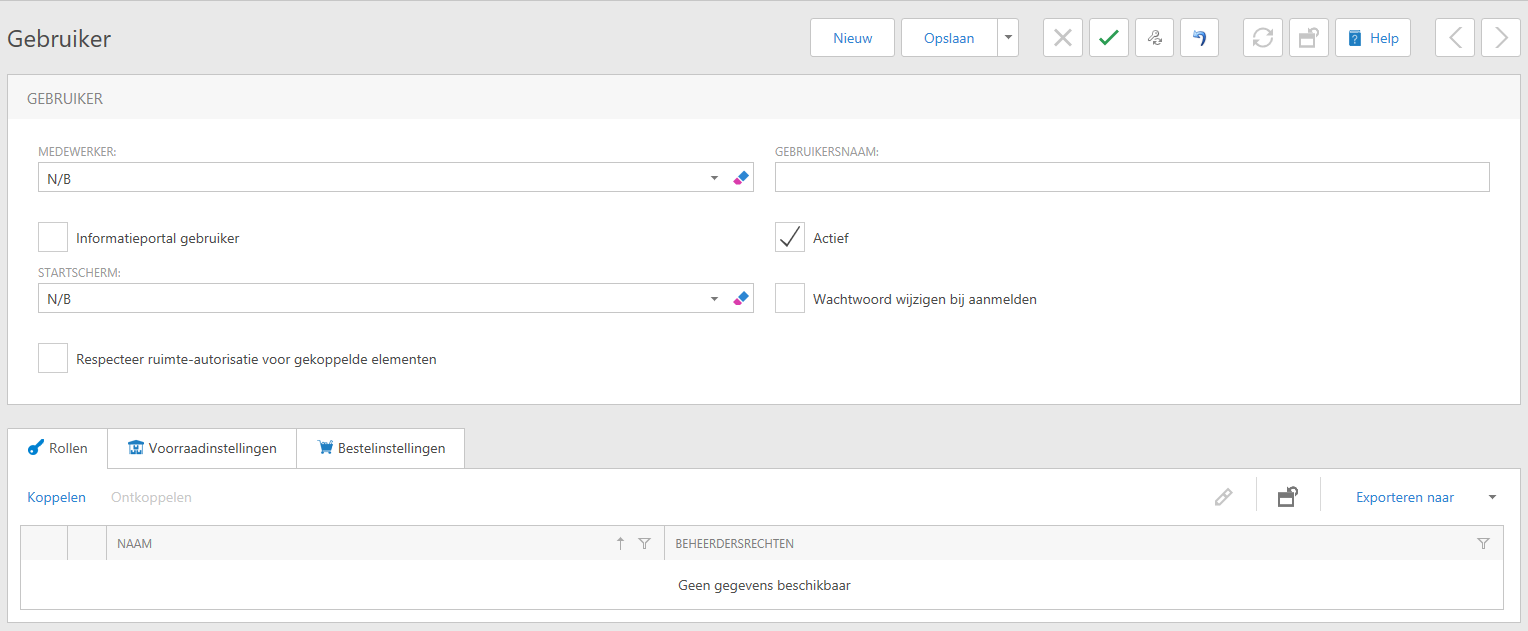
- If you want to link an existing employee, click on the black arrow () next to Employee. All entered employees will then be shown which you can choose from. If you do not want this, leave this field on N / A.
- Username: this must be unique and depend on the policy within your company. Examples are: the business email address, a unique number etc.
- Start screen: you can choose here which start screen the user sees when starting the application. You can choose from:
- BOSubstance_ListView (startscreen substances)
- SubstanceIntranet_ListView (startsreen Information portal).
- If it is an active user, you can leave this box checked. If not, for example because the user is not yet employed, has left the company or no longer needs to look into the application for another reason, then leave it unchecked. This can also be adjusted afterwards.
- Change password when logging in: you can indicate whether this is required. It is advisable for an individual account, but it always depends on the security policy of your own company or organization.
- Respect space authorization for linked elements: here you can indicate whether the rights of the account are limited to specific spaces and everything linked to them.
- Then yo can link the role. If no specific role has been assigned, 'Default' is automatically added.
-
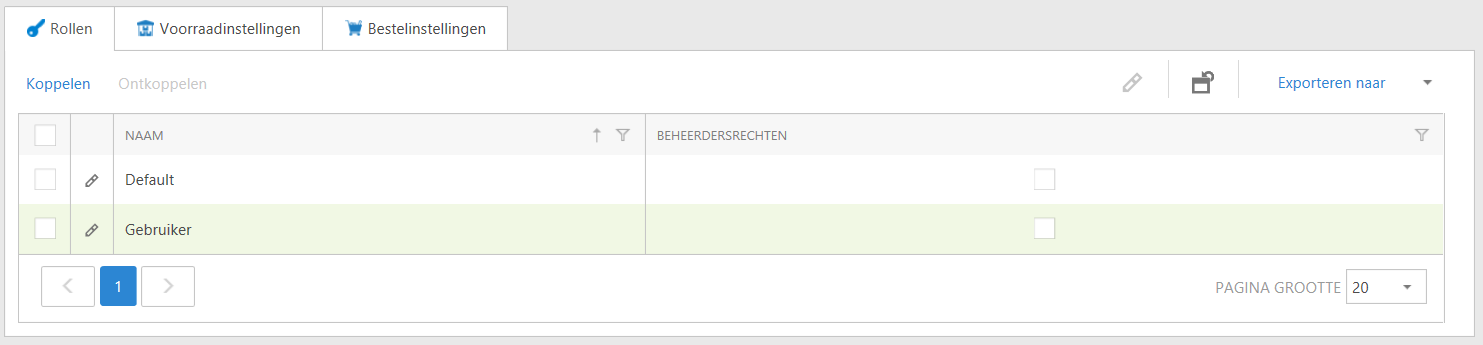
- Administrators: local administrators of SOFOS 360 ®.
- Default: standard account with very few rights; the user can only read his own user data.
- A number of other roles are created for you during the implementation, whereby you indicate which role should be able to do what.
- You can also create roles yourself if necessary. See the available work instruction for this.
See Also
